
Setting Up Maltego ID
This article will walk you through setting up a MaltegoID.
Why do I need a Maltego ID?
Hunchly joined Maltego in May of 2025 and we have been working on migrating some of our business systems into a shared infrastructure. We've introduced the requirement for Maltego ID sign in to access Hunchly downloads in May of 2026. We will be introducing some additional self-serve functions in the future such as license self-serve and account management.
Do I need to authenticate to use Hunchly?
We haven't changed anything with the Hunchly application itself. We aren't introducing a requirement to authenticate with Maltego ID in order to use the software, this is being implemented to support our business activities, account and license management.
Do all of my users need a Maltego ID?
If you are downloading for a team, you don't need to set up individual accounts for each user! Just designate an admin account and then use that to download the needed installers for your various users. You can distribute the installers to your users via policies, shared folders or other methods.
How do I set up a Maltego ID?
-
If you already have a Maltego ID you can just log in using that account.
To set up a new Maltego ID, Go to hunch.ly/downloads and click on create Maltego ID

-
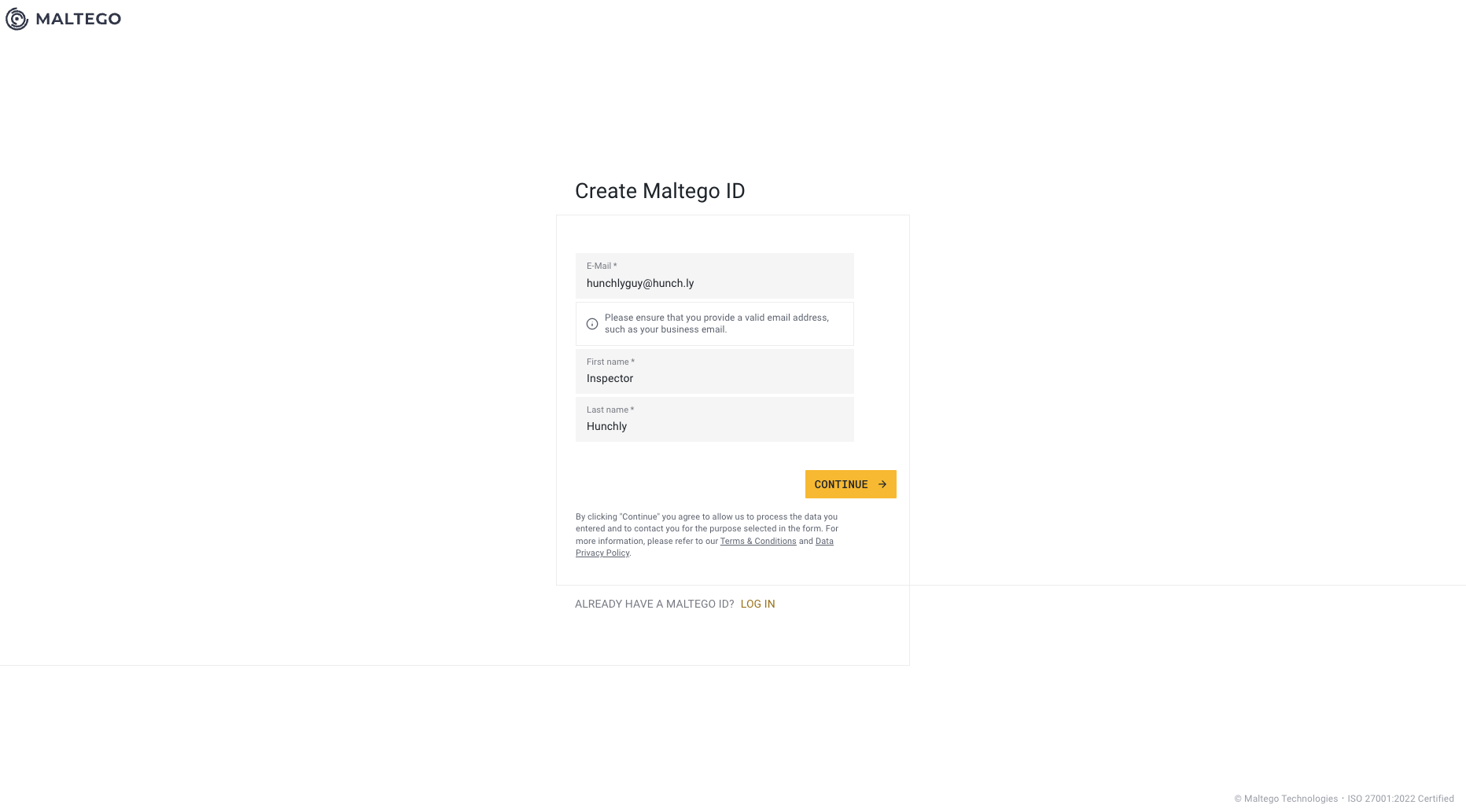
You will be redirected to the sign up page, enter your particulars:
-
Choose a password:
- Finally check your email for confirmation and enter the code:

- Next you can log in to Maltego to set up your profile:

- Complete your profile:


- Finally you can choose your installer and download it. If you are supporting a team, you can download the installers needed and distribute them to you team.

- If you have any feedback or questions/concerns please let us know! Email support@hunch.ly